How to Update FF Beta to the Latest Version? (Latest OB Features)
FF Beta testing app spices up your Free Fire gameplay with extra and new features, such as new weapons, outfits, skins, maps, and even smoother gameplay. However, to keep the app working smoothly and stay compatible with your device, it’s regularly updated. Latest features are added, and bugs are fixed.
This is the reason, in this post, we’ll be teaching you how to update FF Beta to the latest version so you can play the game without any glitches and with the newly launched features. This way, you won’t have to face any version mismatch or incompatibility errors either.
What’s FF Testing App?
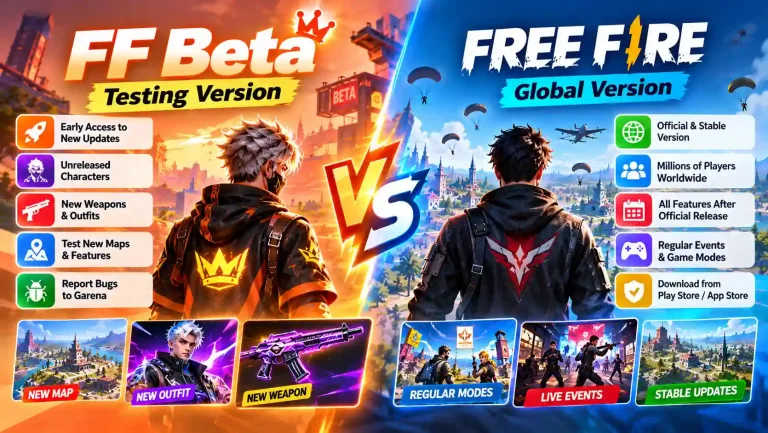
FF testing app is a third-party testing platform created for Free Fire players to give them access to upcoming and extra features. It’s a clone of the official FF Beta version, which isn’t accessible to everybody as it’s only available for a limited number of players who receive an activation code.
The FF testing app, on the other hand, is accessible to everybody without any strict criteria or an activation code.
When you download this app, you get access to the new maps, gameplay changes, and other OB features before they’re launched to the public. You don’t need to wait for the official updates just to use them, as this app offers you all of those in advance.
There are regular FF Beta testing updates on it that make it a must for you to keep it updated to keep enjoying the latest features and smoother gaming performance.
How to Check Your FF Beta Version?
Checking the Free Fire Beta version is important to confirm that you’re using the latest one. These are the 2 methods to check the FF Beta version:
- Login Screen: Open up the Free Fire Beta app on your device and then look at the bottom-left or the right corner of the initial loading screen or the title screen before you log in. Usually, the version number is displayed there.
- In-Game Settings: Log into your Free Fire Beta account and click on Settings, which is a gear icon in the top-right corner of the main lobby. There, click on the Basic tab, and there you’ll see the exact FF Beta version number at the bottom.
How to Know When an Update Is Available?
Whenever there’s an update available in the beta version, you get a clear indication right on your screen. When you open up the app and it starts loading, there’s a pop-up message telling you that an update is available and its version number. You also get a direct link that takes you to the update page, where you can update the app.
How To Update FF Beta?
Updating the FF beta app is extremely easy, and you can do it with these 2 easy methods. One is doing it in the existing app, and the second is updating it using an APK. Let’s learn how to install the FF Beta update without losing data or progress with these methods.
Update FF Beta Using the Existing App
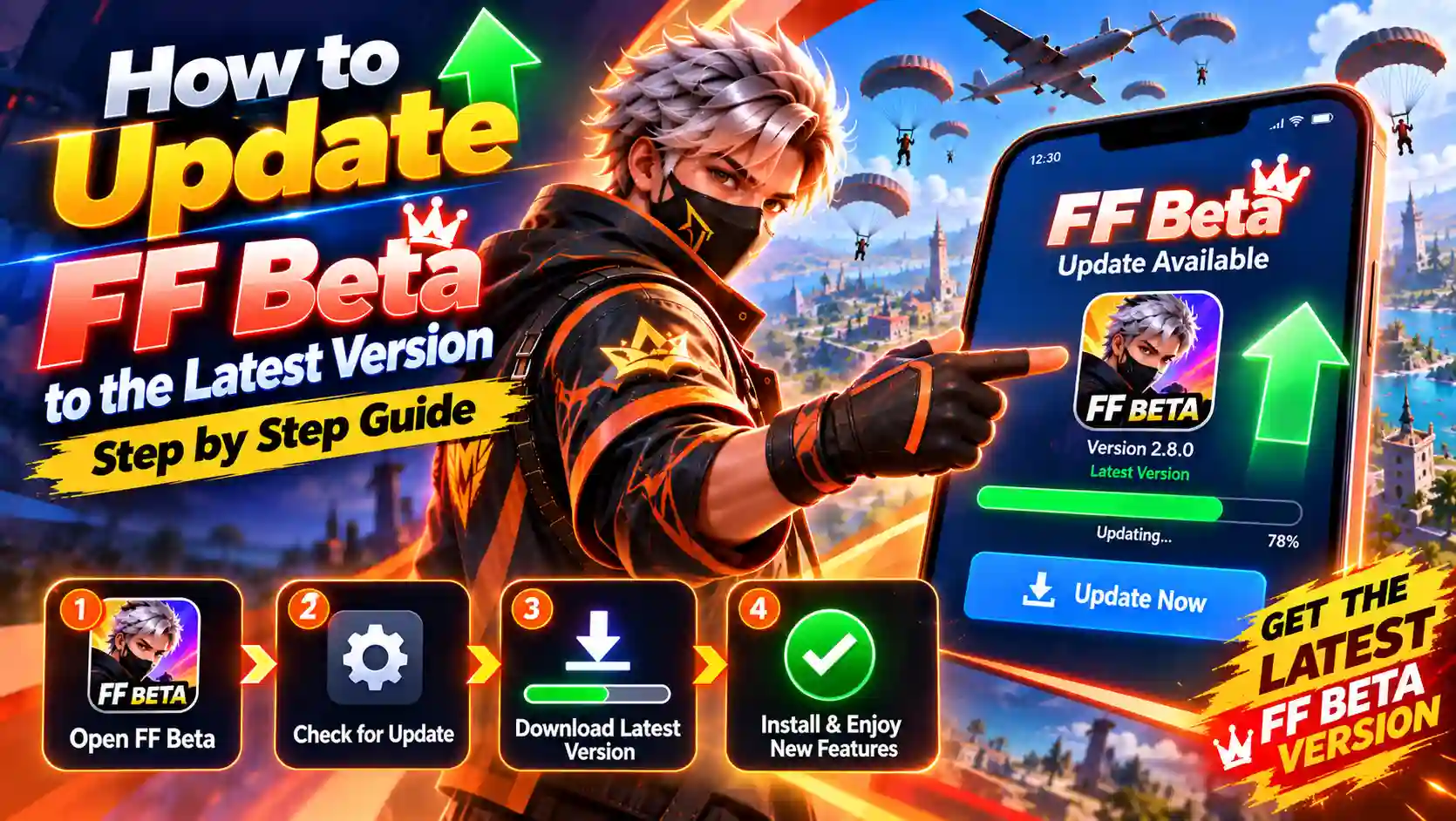
If you want to update Free Fire Beta using the existing app, these are the easy steps to do that:
- Open the FF Beta app on your phone.
- Check whether an update notification or update option appears.
- If the update option appears, click on it, and it’ll take you to the update page. From there, you can click on Download, and the latest app will start to download on your device.
- Let the app fully download without closing the app. When it’s downloaded, click it and hit Install.
- When the installation completes, you can reopen the FF beta, and you’ll be able to use the updated version of it now.
Update FF Beta Using an APK
For the FF beta manual update using an APK, you need to follow these steps:
Get the New APK
- Click on the Download button to download the latest FF beta testing APK. Wait until the download finishes before moving on to the other steps.
Allow APK Installation
- Android may block APK installation if installation from unknown sources is disabled. Therefore, Go to Settings > Privacy > Special Permissions.
- Select your browser, such as Chrome or another installed browser.
- Turn on Allow from this source.
- Already enabled this permission? Skip this step.
Install the Updated Version
- Locate the downloaded FF Beta APK in your File Manager.
- Tap the APK file and begin the installation.
- Don’t open up the app; let the installation finish first.
- If you’re asked to give certain permissions during the latest FF Beta update installation, feel free to allow them.
Check Your Backup
- FF Beta is intended for testing purposes, so your game progress does not carry over to other accounts.
- If you want to keep a copy of the files of your old game, you can simply save them from your File Manager to ensure they’re safe. This step is totally optional.
Use the App
- Open the newly installed FF Beta Testing app after the update.
- Check that the app starts properly and the new version is working.
- You can then explore upcoming OB content, new changes, and other testing features.
- Play battle royale matches to experience the available content before its wider release.
How to Verify the FF Beta Update?
To check if you’ve successfully updated the testing app, long-press on the FF Beta app and select App Info. The version details will show up in front of you. You can also find the version through Settings > App Manager, where the app’s details are displayed.
If you want to do it the easier way, simply open up the game and then see if you can find the latest bundles, premium skins, items, and other recently added content. If you find the latest content, it means your app is updated, and you’re using the FF beta latest version.
Benefits of Keeping FF Beta Updated
A lot of players keep using the old version of FF Beta, thinking that it doesn’t change, which is a wrong perception. It’s always updated with new features, as there are official feature additions in the official Free Fire Beta testing version.
When you update the app, these are the benefits that you get.
- Updating Free Fire Beta helps keep it compatible with the latest Free Fire version.
- Lets you explore new bundles, igloo walls, vehicles, fist skins, and more.
- Gives you access to new characters and weapons for testing.
- Can provide faster loading and smoother gameplay.
- Helps reduce crashes, freezing, and other performance issues.
- An outdated FF Beta version may stop working properly or miss newly added features.
- Keeping it updated ensures you can test the latest available content without compatibility issues.
Will Updating Delete Game Data?
No, updating the Free Fire Beta app won’t delete the game data. Because your game data, such as your character level, items, and diamonds, are associated with your Free Fire account instead of your phone.
If you’ve been playing in guest mode and haven’t linked any account, the progress won’t be saved. Therefore, before updating the app, ensure your FF account is linked with it so that the progress transfers over with the latest version. You can link the testing version with your Facebook, Google, VK, or Apple ID to keep your progress.
FF Beta Update Not Installing And Working
Free Fire beta max update not installing or working? It could happen due to some common issues that we’re going to learn how to troubleshoot now!
APK Won’t Install
Check if the phone has enough free storage for the new APK file. If an older FF Beta version is already on the device, remove it first. Download the latest APK again if the install keeps failing. Turn on Allow from this source for the browser or file manager being used. These steps often clear the path so the new version can install properly.
FF Beta Keeps Crashing
Start with a quick phone restart to clear temporary system problems. Open Settings, then App Manager, find FF Beta, and clear its cache. Open the app again after clearing the cache and see if it runs normally. If crashes continue, check whether the version matches the Android device. A clean restart and cache clear often stop the sudden stops.
Update Download Isn’t Starting
Check the Wi-Fi or mobile internet connection before trying again. Switch to a more stable network if the download keeps stopping. Restart the download and let the APK finish completely. If the update button still does not respond, restart the app or the device. A steady connection and a full download help the update begin and finish.
APK Shows a Parse Error
A damaged or incomplete APK download can cause a parse error. Delete the corrupted file and download the APK again from the source. Let the entire download finish before trying to install. Also, if you’re using an outdated version of Android, update it to the latest through Settings if a newer version is available. After that, try installing the FF beta update again, and hopefully you won’t have the parse error this time.
Version Mismatch Error
This error usually appears when the FF Beta version does not match the required game version. Check whether the latest Free Fire Beta APK is being used. Remove the outdated version and install the newer APK if needed. Make sure Free Fire or Free Fire MAX is also updated. Restart the app after updating and see if the mismatch message goes away.
Simple Tips for a Smooth FF Beta Update
To smoothly update your Free Fire MAX app, follow these smart tips:
- Ensure your Android version is updated to the latest one to avoid compatibility issues.
- Have enough storage on your phone before starting the update process to avoid any interruptions.
- If the APK file is corrupted or the installation fails, delete it and download a fresh APK file from this page by clicking on the Download button.
- Ensure your device has a stable Wi-Fi or mobile internet connection to avoid the download from getting interrupted.
- When the update is installed, restart your phone to help everything work properly again, and then open the app.
Conclusion
How to update FF Beta to the latest version? Updating FF Beta to the latest version is simple. You can update it directly through the existing app or download and install the latest APK manually. Both methods help you access new features, improve compatibility, and keep FF Beta running smoothly.
When you update the app, you’ll get to see all the latest weapons, outfits, skins, maps, and other premium items added to your game. If you don’t see the latest items added or the version shows the same, ensure you’ve followed all these steps correctly from the above given FF Beta update guide.