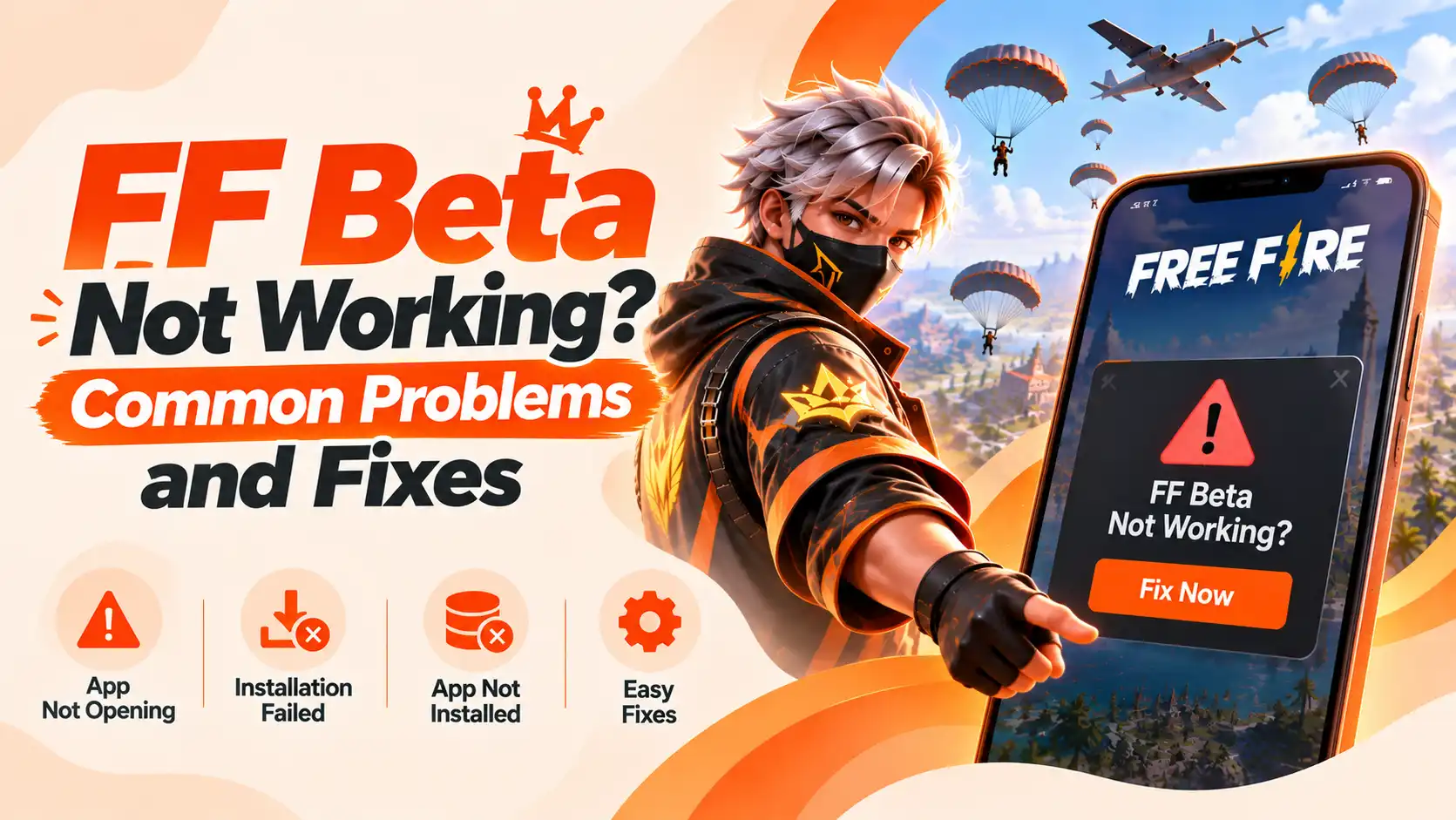
FF Beta Not Working? Common Problems and Fixes
Nothing is more exciting than enjoying the premium and unreleased features of the FF Beta version. The exclusive weapons, outfits, maps, and smoother performance take your gameplay to new heights. However, many gamers face certain issues with their Free Fire beta version, and they wonder, “Why is FF Beta not working”?
There are different reasons that may lead your Free Fire beta version to not work. In this post, we’ll learn about all the reasons why FF Beta is not working and their possible solutions so that you can continue having fun with the beta features again soon.
FF Beta Not Working? Reasons & FIxes
We’ve carefully analysed the gamers’ feedback about the issues they’re having with the FF Beta that lead to it not working properly. These are all those issues and their potential fixes that you can apply to start gaming again.
FF Beta Won’t Open
Is the Free Fire beta not opening? Maybe an outdated APK, corrupted files, insufficient storage, or device compatibility issues are to blame. To fix this issue, restart your device, clear the FF Beta cache, free up storage, and install the latest compatible version. Hopefully, this will fix the issue.
Installation Failed
Sometimes, you download the app and try to install it, but for some reason, it doesn’t get installed. It usually happens due to an incomplete APK download, insufficient storage, blocked installation permission, or an existing older version of the app.
The best way to fix the FF Beta issue is by freeing up some storage, enabling the installation from unknown sources, or redownloading the APK. Then try installing the Free Fire beta version again and see if it works.
App Not Installed Error
Do you see the FF Beta not installed error? It happens when the older FF Beta version or the conflicting APK package is already installed on your device. To fix this issue, uninstall the previous version, restart your device, and install a fresh copy of the latest APK. This will surely fix the issue and help you avoid this error.
Server Connection Error
The most common issue that Free Fire beta version gamers face is the Server Connection error. Not only is it frustrating, but it also keeps you from playing the game. Usually, unstable internet, server maintenance, heavy traffic, or temporary beta server issues cause it.
If you ever encounter it, switch between Wi-Fi and mobile data and then try restarting the game. Now, try the game again, and hopefully the issue will be resolved.
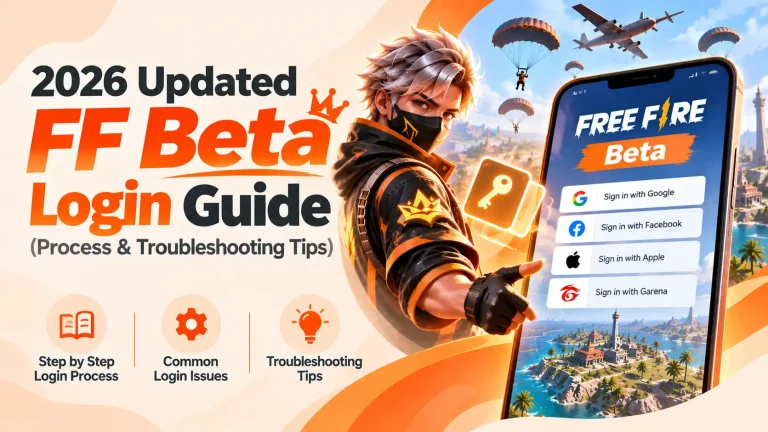
FF Beta login Problem
You’re entering the credentials, but the login is failing. This is a common FF Beta error that people face. Incorrect account details, unsupported accounts, expired access, or temporary server problems are what cause it.
If you want to fix it, use the account linked to your FF Beta access, check your login details and ensure they’re accurate, and also retry when the server is available.
Verification Failed
Can’t you verify the Free Fire beta version, and is it showing the verification failed error? Many players go through this issue, and usually, incorrect verification details, account mismatch, expired verification, or server-side verification issues cause the FF Beta verification problem.
Firstly, recheck your account and verification details and then try again after confirming that the server is active.
Update Required Error
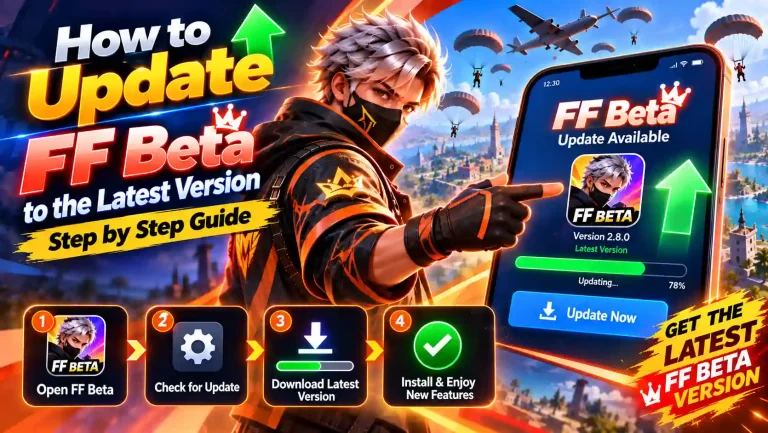
Is the app showing the Update Required error that doesn’t go away, and when you try clicking it, it simply turns off the screen? It simply means that the FF Beta version you’re using is outdated and no longer supported by the current beta server.
To fix it, update the version through the app if an update is available. If there aren’t any updates available, download and install the latest APK file manually. Try running it again, and you’ll see that the issue is fixed.
Version Mismatch
The Version Mismatch FF error shows up in your app whenever you open it. When the installed beta version doesn’t match the version currently running on the server, this error shows up in the app. Remove the outdated app and install the latest FF Beta version for the active testing period again.
Network Problems
FF Beta connection errors or network problems are common while playing this app. The reasons are obvious: weak Wi-Fi or mobile data, an unstable connection, VPN interference, or background apps using bandwidth on your device.
To fix this issue, switch networks, disable your VPN if enabled, and close the background apps. Try playing the game again, and hopefully, you won’t face this issue again.
When the Beta Server Is Offline
If there’s any FF Beta server error, it may happen when the Beta servers are available only during the active testing periods. Or they may be temporarily closed for maintenance. Wait until the testing period/server is active again and check for the latest beta availability before reinstalling the app again.
So, don’t ever wonder why FF Beta is not working, as you’re aware of all the reasons and the possible fixes for all the common issues of Free Fire beta.
Conclusion
Is FF Beta not working on your device? Many gamers go through this issue when they want to play the game but face different issues or errors. They can’t play the game anymore due to these problems.
Therefore, to fix the issue, we’ve mentioned the reasons and solutions below, from outdated or corrupted files and installation problems to server, login, verification, update, version, and network errors. We’ve also included the fixes to get FF Beta working again.